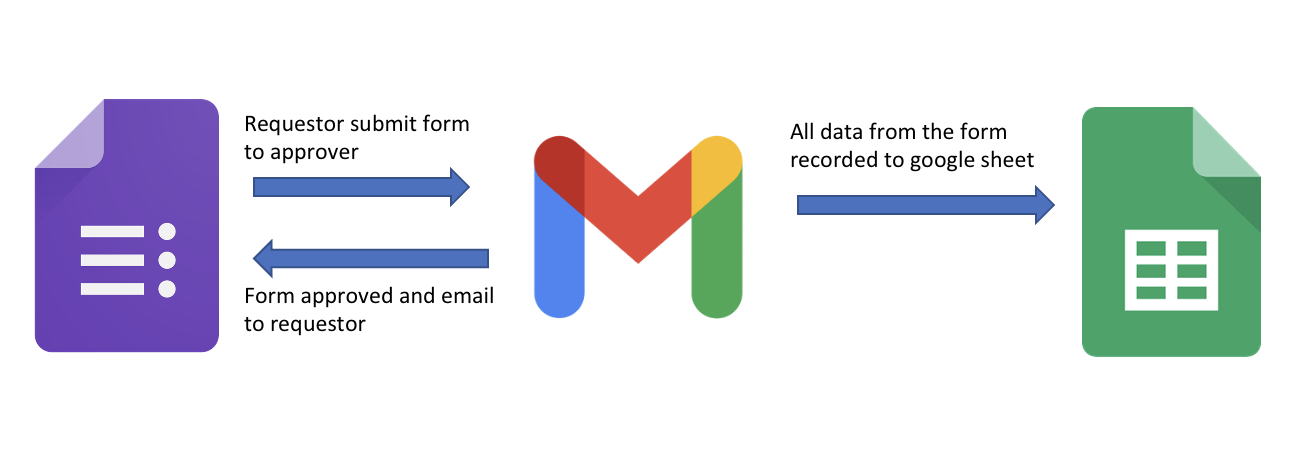
This is the Google Workspace counterpart to the Power Automate approval flow: a form, a spreadsheet, an emailed approve button, and a status email back to the requestor.
It works. It ran. And it depends on three separate things that other people control, which is the part worth writing down.
The shape
Requestor fills Form A
        ↓
Form Mule emails the approver a request with an "Approve" button
        ↓
Approver clicks → Form B (approval form) → approval Sheet
        ↓
VLOOKUP matches case number → requestor's email address
        ↓
Status email sent back to the requestor
Four layers again, but assembled from components that were never designed to be an approval engine:
| Layer | Component | Role |
|---|---|---|
| Input | Google Form | Structured request |
| Storage | Google Sheet | The record — one row per submission |
| Orchestration | Form Mule (Marketplace add-on) | Triggers on new row, generates case number, sends email |
| Propagation | Copy Down (Marketplace add-on) | Extends the formula to each new row |
| Lookup | VLOOKUP + IMPORTRANGE | Maps case number → requestor email across workbooks |
The IMPORTRANGE is what makes this more than a toy: the requestor’s identity lives in one workbook, the approval lives in another, and the join between them is a spreadsheet formula.
Building it
1. The requestor form
Create the form, add the questions, submit a test response. Then two things that matter more than they look:
- Settings → Collect email addresses. Without this the submission has no trustworthy identity, and the whole approval chain has nobody to notify.
- Responses → the Sheets icon. This links responses to a spreadsheet automatically, one column per question. Do this before building anything on top — every later step assumes the sheet exists and grows.
2. The approval form
A second form, one per request type, used as the approval surface. Same settings, same email collection. Its responses land in a second spreadsheet.
Two forms is not elegance, it is the mechanism: the approval is a submission, which means it is authenticated by the same identity collection as the request, and it produces a row you can audit.
3. Form Mule on the requestor sheet
With the requestor sheet open, select a cell (I used G1), then Extensions → Form Mule → Launch. Configure:
- Select the sheet it should watch
- Turn it on
- Tick the case-number column — this is the primary key
- Set the trigger condition (new row submitted)
- Build the email template
- Generate the case number column
The email template is where the approval button lives — plain HTML <a> markup inside the message body, pointing at the approval form. That is the entire approval UI: a hyperlink in an email.
4. The approver sheet
Repeat the same Form Mule setup against the approval form’s sheet, so the approval generates its own case number and its own row.
5. The join
The approver sheet needs to know who to email. That identity is in the requestor workbook, so the formula reaches across:
=VLOOKUP(D3,IMPORTRANGE("<requestor-sheet-url>","Requestor!B:C"),2,0)
IMPORTRANGE pulls the range from the other workbook; VLOOKUP finds the case number and returns column 2. It needs a one-time Allow access click the first time the two workbooks meet — and that click is per workbook pair, not per user, which becomes a maintenance problem later.
The last piece is Copy Down: pointed at the formula cell, it clones the formula into each new row. Without it, row 2 works and row 500 does not.
What actually goes wrong with this design
The flow works in a demo and degrades in production. Three specific reasons:
The primary key is generated by a third-party add-on
Case numbers come from Form Mule. That is fine until the add-on is deprecated, its permission model changes, or the account that authorised it is deprovisioned. The identifier that ties the two workbooks together is produced by something outside your control and outside your backup.
Every dependency is silent when it breaks
If Form Mule stops running, no email is sent and no error surfaces anywhere — the form still accepts submissions and the sheet still fills. If Copy Down is disabled, the formula stops propagating and the email goes to the wrong place or nowhere, silently, from that row onward. If the IMPORTRANGE authorisation lapses, the lookup returns an error in a column nobody is watching.
None of these produce a failure the requestor can see. They produce a request that appears to be submitted and is never actioned — which is exactly the failure the automation was supposed to eliminate.
Two add-ons means two dependencies you did not choose
Form Mule and Copy Down are Marketplace add-ons, not Google Workspace features. Their release cadence, permission model, and continued existence are someone else’s decision. A spreadsheet-based approval system built on two of them has a shorter half-life than the workbook it lives in — and there is no upgrade path except rebuilding it.
I am not claiming either add-on is abandoned. The point is that you cannot see the answer from inside the workbook, and by the time you can, the process depending on it has already broken.
How I would build it now
The add-ons exist to do two things that Apps Script does natively: react to a form submission, and write a formula down a column.
function onFormSubmit(e) {
  const sheet = e.range.getSheet();
  const row = e.range.getRow();

  // case number as the primary key, generated here, not by an add-on
  sheet.getRange(row, 7).setValue('REQ-' + Utilities.formatDate(new Date(), 'GMT+8', 'yyyyMM'));

  // the join, done in code rather than a cross-workbook formula
  const requestor = e.namedValues['Email Address'][0];
  const caseNo = sheet.getRange(row, 7).getValue();

  GmailApp.sendEmail(approver, 'Approval needed: ' + caseNo, body, {
    htmlBody: approvalHtml(caseNo, requestor),
  });
}
One script, bound to the spreadsheet, replaces both add-ons. It has no Marketplace dependency, it runs under your own account or a Workspace service account, and every failure is a line in the execution log instead of a silence.
Three further changes I would make:
- Store the decision in the sheet, not just in the email. Both approve and reject should write a
Statusrow with an approver and a timestamp — the same lesson as the Microsoft version: a record that only contains successes cannot answer the questions people ask later. - Make the approval token unguessable. An emailed link to a form is authenticated only by the form’s email collection. Encode the case number and a signature in the link so a forwarded email cannot be used to approve something someone else requested.
- Monitoring, even for a spreadsheet. A daily count of submissions versus a daily count of emails sent, with an alert on divergence, would have caught all three silent failure modes above. Cheap, and it turns invisible breakage into a notification.
What it was good for
The honest summary: this was 2022 no-code automation, built because a real process needed a record and there was no budget for a system. It replaced a chain of forwarded email with a form, a case number, and a row in a spreadsheet — which is a genuine improvement, and it cost an afternoon.
The lesson is not “spreadsheets are bad”. It is that an approval system is a state machine, and a spreadsheet plus two add-ons is a state machine with no error handling. That is an acceptable trade for a small internal process and a bad one for anything that has to survive a year.
Full step-by-step screenshots: blackhairrr/Google-Form-Approval. The Microsoft 365 version of the same workflow is the companion piece.
Leave a Comment / Ask a Question
Have thoughts or questions on this article? Drop a message below and Faiez will receive an instant notification.